
On iPhone, the built-in Photos app provides powerful tools for editing videos you’ve recorded. You can trim a video to change where it starts and ends, adjust playback speed, and fine-tune which parts of a slow-motion video play in slow motion.
In addition, if you record video on iPhone 16 or later models (excluding iPhone 16e), you can edit spatial audio directly in the Photos app, allowing for more advanced sound customization after recording.
How to trim videos on iPhone without app?
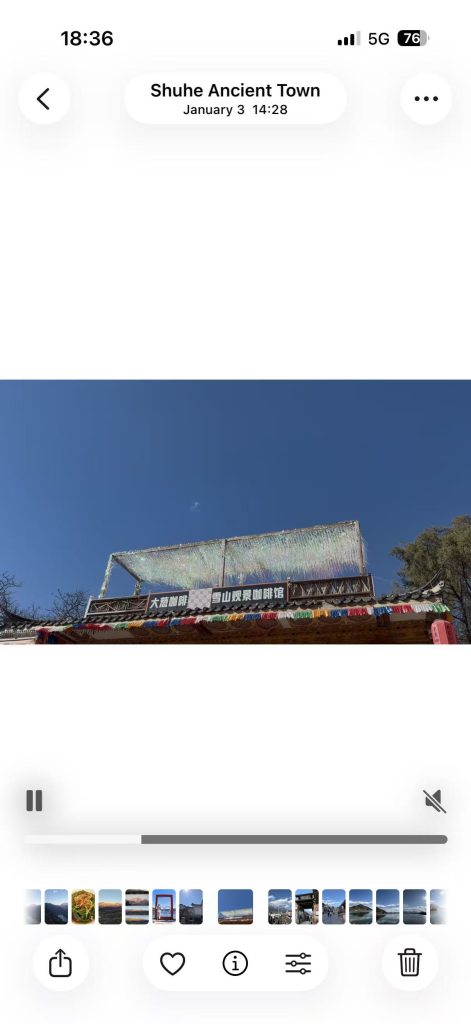
You can easily trim a video to remove unwanted sections at the beginning or end.
Steps:
- Open the Photos app on your iPhone.
- Select the video you want to edit, then tap Edit.
- Drag either end of the frame viewer below the video to adjust the start and stop times.
- Tap Done.
- Choose one of the following options:
- Save Video to overwrite the original video with the trimmed version.
- Save Video as New Clip to keep both the original and the trimmed versions.
If you want to undo edits after saving, open the video, tap Edit, then tap Revert.
Note: Videos saved as new clips cannot be reverted to their original versions.
Edit Video Playback Speed
You can change the playback speed of videos recorded at high frame rates to create dramatic slow-motion or faster effects.
Steps:
- Open the Photos app.
- Select the video, tap Edit, then tap Video.
- Tap the Playback Speed button.
- Choose a playback speed option.
Note: Available speed options depend on the video’s recording format. Videos recorded at higher frame rates offer more speed adjustment choices.
Edit the Slow-Motion Section of a Video
For videos recorded in Slow-Motion mode, you can control exactly which part of the video plays in slow motion.
Steps:
- Open the Photos app.
- Select a slow-motion video and tap Edit.
- Drag the black vertical bars beneath the frame viewer to define the portion of the video that should play in slow motion.
Edit Audio Using Audio Mix
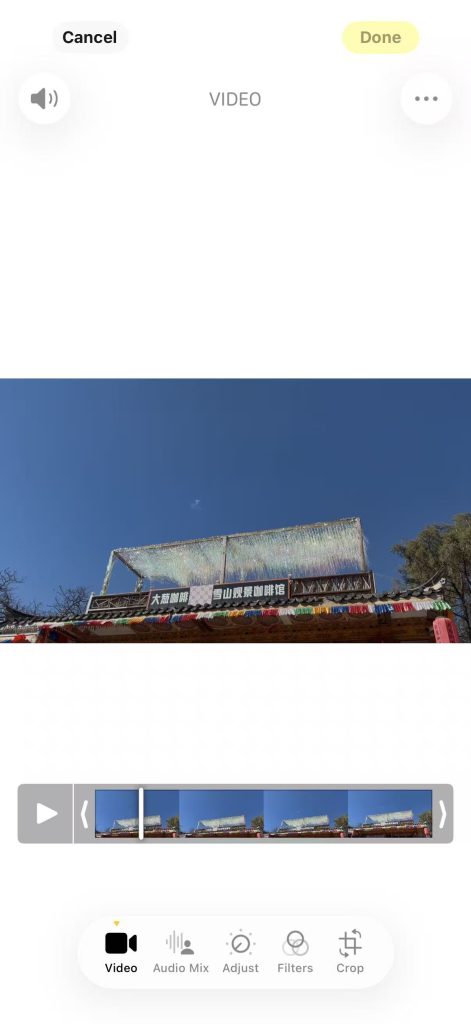
On iPhone 16 and later models (excluding iPhone 16e), videos can be recorded using multiple audio formats, including Spatial Audio and Stereo, allowing for advanced audio editing after recording.
If the video was recorded with Spatial Audio enabled, you can enhance the sound by reducing background noise and emphasizing voices.
Steps:
- Open the Photos app.
- Select the video and tap Edit.
- Tap Audio Mix, then choose one of the following options:
- Standard: Plays the original recorded audio.
- In-Frame: Reduces sounds and voices coming from outside the video frame.
- Studio: Minimizes background noise and echo, making the audio sound like it was recorded in a professional studio.
- Cinematic: Places voices on a forward-facing track while keeping ambient sounds in surround, similar to movie audio.
- Drag the slider below the selected audio mix to adjust the effect intensity and background noise level.
- Tap Done to save your changes.
To learn more about Spatial Audio and recording options, see Change Recording Options on iPhone.
How to edit video on iphone 16
How to edit videos on iphone 15
How to combine videos on iphone
Do iPhones have a built-in video editor?
Yes, iPhones have a built-in video editor inside the Photos app that allows you to trim videos, adjust lighting and color, crop or rotate clips, change playback speed, edit slow-motion sections, and even modify audio on supported models. It’s ideal for quick and simple edits without downloading additional apps, though it doesn’t support advanced features like multi-clip timelines, transitions, or text overlays.
Today's Electronics Deals & Special Offers
Looking for a better price on your next tech purchase? Explore Amazon electronics deals, special offers and savings across popular tech categories.
EXPLORE TODAY'S DEALS ↗Explore Electronics Deals
Ready to Find Your Next Tech Deal?
Browse Amazon's latest electronics offers and discover deals across a wide range of categories.
As an Amazon Associate, we earn from qualifying purchases.