
Online privacy has become one of the biggest concerns in the digital age. From social media apps to shopping platforms, many services collect user data to personalize content and deliver targeted advertising. If you’ve recently purchased a new iPhone — or even if you’ve had one for years — taking a few minutes to review your privacy settings can significantly improve your digital security.
Apple has positioned itself as a leader in consumer privacy by introducing powerful anti-tracking tools. Among the most impactful of these is App Tracking Transparency (ATT), a feature that gives users direct control over whether apps can track their activity across other apps and websites.
What Is App Tracking Transparency?
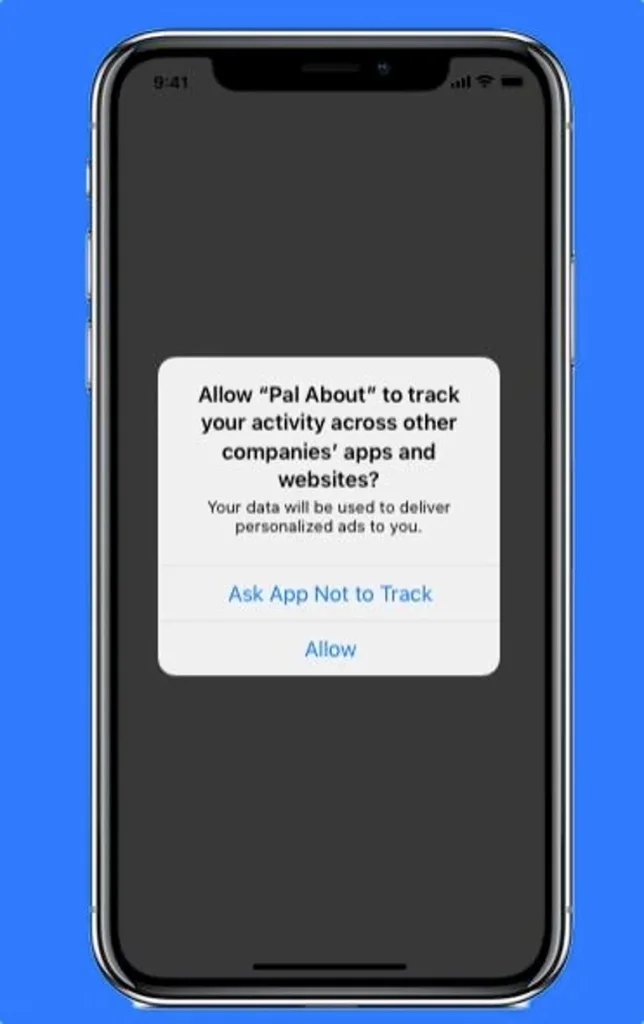
App Tracking Transparency is a privacy feature introduced by Apple at its Worldwide Developers Conference (WWDC) in 2020 and officially rolled out with iOS 14.5. The feature requires apps to request explicit permission before tracking users’ activity across other apps and websites.
When you open an app for the first time after installation, you may see a pop-up message asking:
“Allow [App Name] to track your activity across other companies’ apps and websites?”
You have two options:
- Allow Tracking
- Ask App Not to Track
If you choose to opt out, Apple restricts the app’s access to certain identifiers, including:
- Your advertising ID (IDFA)
- Location data used for ad profiling
- Device identifiers linked to cross-app tracking
- Data shared with third-party advertisers
Without your explicit permission, apps — including Apple’s own apps — cannot use this data for targeted advertising or cross-platform tracking.
Why This Feature Matters
Before ATT, many apps quietly collected behavioral data to build detailed advertising profiles. This data could include:
- Websites you visit
- Apps you use
- Products you view
- Location patterns
- Interaction habits
App Tracking Transparency shifts control from companies to users. Instead of automatic tracking, apps must now ask for permission.
This change had a major impact on the tech industry. While privacy advocates praised Apple’s decision, major advertising-driven companies — including Meta (formerly Facebook) — criticized the feature. A 2021 Financial Times investigation estimated that Snapchat, Facebook, Twitter, and YouTube collectively lost nearly $10 billion in ad revenue after most Apple users opted out of tracking.
Privacy Improvements in iOS 17 and Beyond

Apple continues expanding its privacy ecosystem with every iOS update.
In iOS 17, Apple introduced additional enhancements:
- The ability to choose a different default search engine when browsing in Safari’s Private Mode
- Improved protection for sensitive data on stolen devices
- Enhanced link tracking protection in Messages and Mail
- More detailed privacy reports showing how apps use your data
These improvements build on the foundation established by App Tracking Transparency and reinforce Apple’s commitment to transparency and user control.
How to Turn Off App Tracking on New Apps
Whenever you download and open a new app on your iPhone, Apple’s App Tracking Transparency (ATT) system automatically steps in. You’ll see a pop-up message asking whether you want to allow the app to track your activity across other companies’ apps and websites.
The pop-up typically includes a brief explanation of what the app wants to track — such as browsing activity, app usage data, or identifiers used for advertising purposes.
At this point, you have two options:
- Ask App Not to Track – Blocks the app from tracking your activity across other apps and websites.
- Allow – Grants the app permission to access tracking data for advertising and analytics.
If you tap Ask App Not to Track, the app will be prevented from accessing your device’s advertising identifier (IDFA) and other tracking data used for cross-app advertising.
How to Automatically Block Tracking for All New Apps
If you prefer not to see these tracking requests at all — and want to block tracking by default — you can disable tracking system-wide.
Follow these steps:
- Open Settings
- Tap Privacy & Security
- Select Tracking
- Toggle off Allow Apps to Request to Track
Once this setting is turned off:
- Apps will no longer be able to request tracking permission.
- New apps will automatically be denied tracking access.
- Apps you haven’t previously approved will be blocked from accessing advertising identifiers and cross-app tracking data.
According to Apple, apps that attempt to track you will be informed that you have chosen not to allow tracking.
What Happens After You Turn Off Tracking?
It’s important to understand what this setting actually changes.
Turning off tracking does not:
- Remove ads from apps
- Prevent all data collection
- Stop apps from collecting first-party data within their own platform
Instead, it prevents apps from:
- Tracking your activity across other companies’ apps and websites
- Sharing your advertising ID with third parties
- Building cross-app behavioral profiles for targeted advertising
You’ll still see ads, but they’ll likely be more generic rather than highly personalized. For example, instead of seeing ads for a specific pair of shoes you viewed once, you may see broader category ads such as “fashion” or “sportswear.”
How to Turn Off App Tracking on Already Downloaded Apps
If you previously allowed an app to track your activity — or simply want to review your current permissions — you can manage tracking settings on a per-app basis at any time.
Apple makes it easy to adjust tracking permissions individually, giving you full control over which apps can access your advertising data.
To turn off tracking for apps you’ve already installed:
- Open Settings
- Tap Privacy & Security
- Select Tracking
Here, you’ll see a list of apps that have requested permission to track your activity across other companies’ apps and websites.
Each app will have a toggle switch next to its name:
- Green (On) – The app is allowed to track you.
- Gray (Off) – The app is not allowed to track you.
Simply toggle off any app you no longer want to track your activity.
Changes take effect immediately.
Final Words
Turning off app tracking is quick and straightforward, and it gives you greater control over how your data is used for advertising.
However, remember that disabling tracking limits cross-app data sharing — it doesn’t eliminate all data collection. Staying informed and regularly reviewing your privacy settings is the best way to protect your digital footprint.
FAQ
How Do I Stop Apps from Listening to My iPhone?
To stop apps from listening to your iPhone, go to Settings > Privacy & Security > Microphone, where you’ll see a list of apps that have requested microphone access. Simply toggle off any app you don’t want using your microphone, and the change takes effect immediately. Once disabled, the app can no longer record audio unless you grant permission again. You can also watch for the small orange indicator at the top of your screen, which appears whenever an app is actively using your microphone.
How to Turn On App Tracking on iPhone?
To turn on app tracking on your iPhone, go to Settings > Privacy & Security > Tracking. At the top of the screen, make sure Allow Apps to Request to Track is turned on — this allows apps to ask for permission to track your activity across other apps and websites. Below that, you’ll see a list of apps that have requested tracking access. You can individually toggle tracking on or off for any app in the list.
Why Can’t I Turn On App Tracking on iPhone?
If the “Allow Apps to Request to Track” option is grayed out or won’t turn on, there are several common reasons:
1. You’re Using a Child Apple ID
If your Apple ID belongs to a child under 18 (or under 13 in some regions), Apple automatically disables app tracking requests.
2. Screen Time Restrictions Are Enabled
If Screen Time restrictions are active, tracking settings may be locked.
Check:
Settings > Screen Time > Content & Privacy Restrictions
3. Your Apple ID Was Created Recently
If your Apple ID was created within the last few days, tracking controls may be temporarily unavailable.
4. You Have an MDM or Work/School Profile Installed
If your iPhone is managed by an organization (via Mobile Device Management), tracking settings may be restricted by policy.
5. Personalized Ads Are Disabled
If Apple’s advertising settings are restricted in certain regions, tracking controls may not be adjustable.
How to Turn On App Tracking on Android
Unlike iPhones, Android handles app tracking through the “Advertising ID” and app permissions. To allow apps to track your activity for personalized ads:
Step 1: Open Your Settings
- Go to Settings on your Android device.
Step 2: Access Privacy Settings
- Tap Privacy (on some devices, it may be under Google > Ads).
Step 3: Enable Advertising ID Tracking
- Look for Ads or Advertising ID settings.
- Make sure Opt out of Ads Personalization is off. This allows apps to access your advertising ID and track your activity for personalized ads.
Step 4: Manage Individual App Permissions
Go to Settings > Apps > Special App Access > Usage Access to allow or restrict apps individually.
how to turn off iphone tracking location
how to enable location tracking on iphone
Some apps may also request Activity or Usage Access.
How to Turn Off iPhone Tracking Location
To turn off location tracking on your iPhone, go to Settings > Privacy & Security > Location Services. You can toggle Location Services off entirely to stop all apps and system services from accessing your location, though this will disable features like Find My iPhone, Maps, and location-based reminders.
If you prefer more control, you can manage location access on a per-app basis by scrolling through the list of apps, selecting an app, and choosing Never, Ask Next Time Or When I Share, or While Using the App.
Additionally, you can disable system-level location tracking by tapping System Services at the bottom and turning off options like Location-Based Apple Ads, Suggestions & Routing, and Emergency Calls & SOS. This approach lets you protect your privacy while still allowing essential functions if needed.
Today's Electronics Deals & Special Offers
Looking for a better price on your next tech purchase? Explore Amazon electronics deals, special offers and savings across popular tech categories.
EXPLORE TODAY'S DEALS ↗Explore Electronics Deals
Ready to Find Your Next Tech Deal?
Browse Amazon's latest electronics offers and discover deals across a wide range of categories.
As an Amazon Associate, we earn from qualifying purchases.